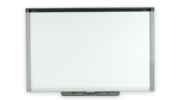
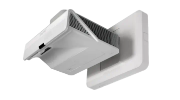
Using a SMART UF55w projector with a SMART Board 680
Overview
Your SMART UF55w projector has a 16:10 aspect ratio with a native resolution of 1280 × 800, but a 4:3 aspect ratio best fits the SMART Board 680 interactive whiteboard. Your SMART UF55 projector supports a 4:3 aspect ratio with a native resolution of 1024 × 768.
Details
To use your SMART UF55w projector with your SMART Board 680 interactive whiteboard, perform the following procedures:
-
Ensure your computer is connected to your interactive whiteboard system. See the SMART Board 600i3 Interactive Whiteboard System Configuration and User's Guide (smarttech.com/kb/131156) for more information.
-
Set your computer’s resolution to a 4:3 aspect ratio (1024 × 768 resolution).
-
Adjust your projector's Aspect Ratio option to Match Input.
Setting your computer’s resolution to 1024 × 768
The procedures for setting your computer’s resolution depends on its operating system version and its display configuration.
Generally you can use the Windows Display settings to change the resolution. The process for opening the Display settings properties is similar for most versions of Windows operating systems.
Windows XP
To set your computer’s resolution to 1024 × 768
-
Right-click on an empty area of the desktop and select Properties.
The Display Properties screen appears.
-
On the Settings tab, change the Screen resolution to 1024 × 768 pixels.
-
Click OK.
To set your computer’s resolution to 1024 × 768
-
Right-click on an empty area of the desktop and select Personalize.
The Personalize appearance and sounds screen appears.
-
Click Display Settings to open the display properties.
-
Change the Resolution to 1024 × 768 pixels.
-
Click OK.
Windows 7
To set your computer’s resolution to 1024 × 768
-
Right-click on an empty area of the desktop and select Screen Resolution.
-
Select 1024 × 768 (recommended) from the Resolution drop-down list.
-
Click OK to close the screen.
Adjusting your projector’s Aspect Ratio option to Match Input
Perform the following procedure to adjust the projector’s Aspect Ratio option to Match Input.
To adjust your projector’s Aspect Ratio option
-
Press the Menu button on the projector’s remote control.
The SMART UF55 Settings screen appears.
-
Select the match input by using the right ( < ) or left ( > ) arrow buttons on the remote. The active selection is green.
-
Select Aspect Ratio.
-
Select Match Input.
-
Align the image with the interactive screen. For more information, see Adjusting the Image with the UF55/UF55w Projector (smarttech.com/kb/133105).
The projector splash screens “Extraordinary made simple™” and the blue screen with the SMART logo (or any splash screens you created) always display in widescreen format, due to the projector’s native widescreen resolution of 1280 × 800. Do not use the splash screen to align the projector image.
Additional information
See the following documents for additional information: