dcsimg

Downloading Manipulative Objects from the SMART Learning Marketplace Website

SMART Software SMART Board software 9.7
Operating Systems Windows operating systems and Mac OS X operating system software

Overview

This article explains how to download and open manipulative objects from the SMART Learning Marketplace website. Manipulative objects are interactive lesson activities on a wide variety of subjects.

Note  

Manipulative objects open in a new window. If you’re using the Windows XP Service Pack 2 (SP2) operating system, set your browser to allow blocked content. See document 1245 for more information.

Details

You can insert manipulative objects into a Notebook file from a Web browser or from within Notebook software. You can also save manipulative objects to a specific directory.

To access manipulative objects

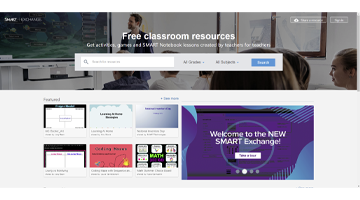
  1. Go to http://learningmarketplace.smarttech.com.

    OR

    Open the SMART Learning Marketplace website by clicking the Gallery tab in Notebook software, and then selecting SMART Learning Marketplace.

  2. Log in to your account.

  3. Type your topic in the Search box, and then either select the Manipulatives checkbox before you press Search, or expand the Manipulatives section in the search results list.

Once you locate a manipulative object that you want to include in your Notebook file, you can download the object from within Notebook software or from a Web browser.

To insert a manipulative object in a Notebook file from the Gallery tab

  1. Drag the manipulative object from the Gallery tab, and then position it anywhere on the Notebook page. You can also click the Manipulative’s icon in the Gallery tab to position the object automatically in the top left corner of the Notebook page.

    Your manipulative object icon appears on the Notebook page. A progress bar indicates that your object is downloading.

  2. When your object finishes downloading, press the green Play button to open your manipulative object in a new window.

To insert a manipulative object in a Notebook file from a Web browser (Windows operating systems only)

  1. On the manipulative object icon, click Add to Notebook.

    A window appears, indicating that the object was successfully added to Notebook software.

  2. Click Close.

    Notebook software starts automatically if you haven’t already started it, and the manipulative object icon appears in the top left corner of the Notebook page. A progress bar indicates thyourthe manipulative object in a new window.

To save a manipulative object to a specific directory

  1. On the manipulative object icon, click Download.


  2. Click Close in the window thanking you for your purchase.

  3. Browse to the folder where you want to save your manipulative object, and then click Save.

  4. When the object finishes downloading, browse to the folder where you saved your manipulative object, and then double-click the .zip file you downloaded.

  5. Click Extract to folder.

    The Extract window appears.

  6. In the Extract To box, browse to the location where you want to extract your files.

    OR

    Click New Folder to create a new folder for your manipulative object.

  7. Click Extract.

  8. Browse to the folder where you extracted your files, and then double-click the .htm file to launch your manipulative object.

The manipulative object opens in a new window. If you’re using the Windows XP Service Pack 2 (SP2) operating system, set your browser to allow blocked content. See document 1245 for more information.

Notes  

  • There may be more than one .htm file in the folder where you extracted your files. As well, the .htm file name varies from object to object and so does its location within the extracted folder. Double-click each .htm file until the manipulative object opens.

  • If your manipulative object doesn’t play, you may need to download a SCORM (Sharable Content Object Reference Model) player. Some common SCORM players include the Reload (www.reload.ac.uk) and Black Arrow players. SCORM is a collection of standards and specifications regulating Web-based learning.

First Published November 15, 2007
Last Updated January 18, 2008


Get answers and information

Searching notebook docs - matte blue

Search our knowledge base – a library of over 1,500 technical documents.

Contact support

Illustration of man wearing headset

Do you have questions about your SMART products? Our support team can help you get the answers you need.

       
SMART Technologies is a leading provider of technology solutions that enable inspired collaboration in schools and workplaces around the world by turning group work into a highly interactive, engaging and productive experience. SMART delivers an integrated solution of hardware, software and services designed for superior performance and ease of use, and remains a world leader in interactive displays.
©2013 SMART Technologies All rights reserved | Legal
This site uses cookies to improve the experience of our visitors. By continuing to browse this site,
you are agreeing to our use of cookies. Find out more.