dcsimg

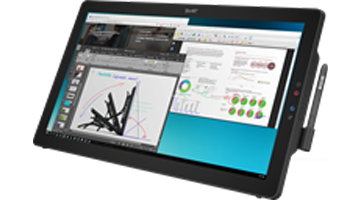
The Sympodium Interactive Pen Display Doesn’t Display Anything

SMART Hardware Sympodium interactive pen displays
Operating Systems Windows operating systems and Mac OS X operating system software

Issue

The Sympodium interactive pen display doesn’t display anything.

Cause

The Sympodium interactive pen display doesn’t display anything if:

  • The display isn’t correctly installed and connected to an active power source.

  • The connected computer isn’t turned on, or it’s in sleep mode.

  • The display’s resolution or refresh rate isn’t set correctly.

  • The display is set to its lowest contrast and brightness settings.

  • The display is set to its lowest backlight settings (all models except the DT770).

Solution

Complete the following procedure to determine why your Sympodium interactive pen display doesn’t display anything.

Note  

You may be able to resolve the issue before completing the procedure.

  1. Install and connect your pen display to your computer and an active power source.

  2. Follow the instructions in your installation guide.

  3. Turn on your pen display and verify that its POWER indicator (light) is working. See document 98197 for more information.

  4. Turn on the connected computer. Wake up the computer if it’s in sleep mode.

  5. Press your display with its tethered pen, and verify that the STATUS indicator (light) flashes. The STATUS indicator is located to the left of the POWER indicator on most models, and below the POWER indicator on the DT770 model.

  6. Set your display’s resolution to 1280 × 1024 pixels (ID370 and DT770 models) or 1024 × 768 pixels (all other models). See the corresponding procedures in this document.

  7. Set your display’s refresh rate to 70 Hz or less. See the corresponding procedures in this document.

  8. Reset your contrast and brightness settings. See the corresponding procedures in this document.

  9. Reset your backlight setting (all models except the DT770 model). See the corresponding procedure in this document.

To set your display’s resolution (Windows operating systems)

  1. Connect a monitor or laptop to your Sympodium interactive pen display.

  2. Working with the connected monitor or laptop, select Start > Control Panel > Display.

    The Display Properties dialog box appears.

  3. Click the Settings tab.

  4. If you’re working with an ID370 or DT770 model, adjust the slider in the Screen resolution group box to 1280 by 1024 pixels.

    OR

    If you’re working with any other model, adjust the slider in the Screen resolution group box to 1024 by 768 pixels.

  5. Click Apply to save your changes.

  6. If this procedure resolves the issue, click OK to close the Display Properties dialog box.

    OR

    If this procedure doesn’t resolve the issue, leave the Display Properties dialog box open, because you will work with it in the next procedure.

To set your display’s refresh rate (Windows operating systems)

  1. Connect a monitor or laptop to your Sympodium interactive pen display.

  2. Working with the connected monitor or laptop, select Start > Control Panel > Display.

    The Display Properties dialog box appears.

  3. Click the Settings tab.

  4. Click Advanced.

    The Plug and Play Monitor dialog box appears.

  5. Select the Monitor tab in the Plug and Play Monitor dialog box.

  6. Select a refresh rate of 70 Hertz or less in the Screen refresh rate list.

  7. Click OK to save your changes and close the Plug and Play Monitor dialog box.

  8. Click OK to save your changes and close the Display Properties dialog box.

To set your display’s resolution and refresh rate (Mac OS operating system software)

  1. Connect a monitor or laptop to your Sympodium interactive pen display.

  2. Working with the connected monitor or laptop, select Apple menu > System Preferences.

    The System Preferences window appears.

  3. Double-click the Displays icon.

    Your computer’s display window appears.

  4. If you’re working with an ID370 or DT770 model, select 1280 × 1024 in the Resolutions area.

    OR

    If you’re working with any other model, select 1024 × 768 in the Resolutions area.

    Your change takes effect immediately.

  5. Select 70 Hertz or less in the Refresh Rate list.

    Your change takes effect immediately.

  6. Close your computer’s display window.

To reset your contrast, brightness and backlight settings (all models except the DT770 model)

In the following procedure, press the MENU, ENTER and + buttons on your Sympodium interactive pen display.

  1. Press MENU.

    The CONTRAST menu appears.

  2. Press ENTER to select the CONTRAST menu.

    The status bar in the CONTRAST menu is highlighted in yellow.

  3. Press + to increase your display’s contrast setting, and then press ENTER to save your changes.

  4. Press + to move to the BRIGHTNESS menu.

  5. Press ENTER to select the BRIGHTNESS menu.

    The status bar in the BRIGHTNESS menu is highlighted in yellow.

  6. Press + to increase your display’s brightness setting, and then press ENTER to save your changes.

  7. Press + to move to the BACKLIGHT menu.

  8. Press ENTER to select the BACKLIGHT menu.

    The status bar in the BACKLIGHT menu is highlighted in yellow.

  9. Press + to increase your display’s backlight setting, and then press ENTER to save your changes.

    Important  

    The default backlight setting is 80. A setting of 80 or lower serves to both preserve the life of the backlight, and prevent the pen display from overheating.

  10. Press MENU to close the menu.

To reset your contrast and brightness settings (DT770 model)

In the following procedure, press the MENU, AUTO SELECT and + buttons on your Sympodium interactive pen display.

  1. Press MENU.

    The Main Menu appears.

  2. Press AUTO SELECT to select the Contrast menu.

    The Contrast menu is highlighted in pink.

  3. Press + to increase your display’s contrast setting.

    Your changes take effect immediately.

  4. Press AUTO SELECT to move to, and select, the Brightness menu.

  5. Press + to increase your display’s brightness setting.

    Your changes take effect immediately, and the Main Menu closes automatically after a short period of time.

If your Sympodium interactive pen display still doesn’t display anything, contact SMART Support.

First Published June 6, 2007
Last Updated October 26, 2007


Get answers and information

Searching notebook docs - matte blue

Search our knowledge base – a library of over 1,500 technical documents.

Contact support

Illustration of man wearing headset

Do you have questions about your SMART products? Our support team can help you get the answers you need.

       
SMART Technologies is a leading provider of technology solutions that enable inspired collaboration in schools and workplaces around the world by turning group work into a highly interactive, engaging and productive experience. SMART delivers an integrated solution of hardware, software and services designed for superior performance and ease of use, and remains a world leader in interactive displays.
©2013 SMART Technologies All rights reserved | Legal
This site uses cookies to improve the experience of our visitors. By continuing to browse this site,
you are agreeing to our use of cookies. Find out more.